EXPORT GUIDES
Export a netlist and a searchable PDF
We need two things from your ECAD tool: a netlist (which pins connect to which nets, with part numbers and values if your tool includes them) and a schematic PDF whose text can be searched. A PDF that was scanned, printed as an image, or has its text turned into outlines can't be checked against the netlist.
To test a PDF, open it and press Ctrl+F (Cmd+F on a Mac), then search for a reference designator such as R1. If nothing is found, export it again with the steps below.
Jump to: KiCad · Altium · Cadence · Siemens Xpedition · Siemens PADS Logic · Eagle / Fusion · EasyEDA · Zuken
KiCad
Netlist
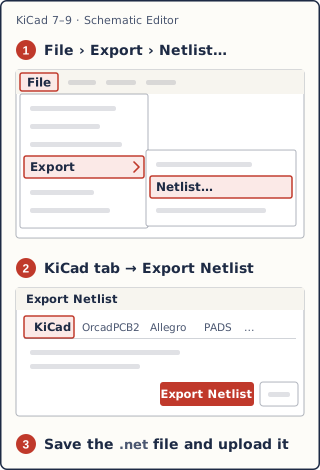
- In the Schematic Editor, choose File › Export › Netlist…
- On the KiCad tab, click Export Netlist and save the
.netfile.
- Choose File › Plot…, set the format to PDF, and plot all pages.
PDFs plotted by KiCad 5 or later keep searchable text. Avoid printing through a PDF printer driver, or pasting the drawing into another document before making the PDF.
Altium Designer
Netlist
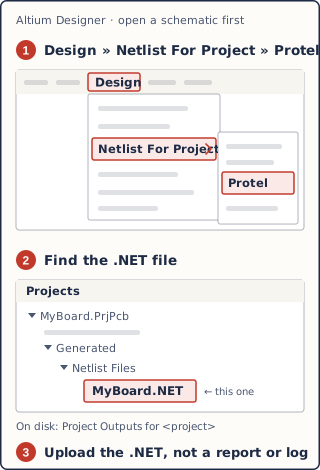
- With the project open, choose Design » Netlist For Project » Protel.
- The
.NETfile appears in the Project Outputs for <project> folder. Protel2, EDIF and WireList netlists work too.
- Choose File » Smart PDF, pick Current Project, select the schematic documents and finish the wizard.
Schematic text uses Windows fonts and stays searchable. If you also include PCB prints, keep Enable Fonts Replacement on (Advanced tab, Altium Designer 21.7.1 and later).
Cadence (OrCAD / HDL / Concept)
Netlist — OrCAD Capture
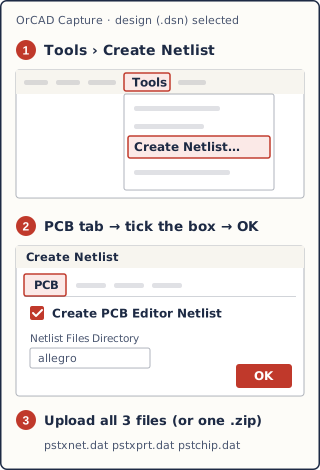
- Select the design (
.dsn) in the Project Manager. - Choose Tools › Create Netlist, open the PCB tab, tick Create PCB Editor Netlist and click OK.
- Upload the three files it writes:
pstxnet.dat,pstxprt.datandpstchip.dat, or a.zipof them.
Every part needs a PCB Footprint property, or the netlist step stops with an error.
Netlist — Allegro Design Entry HDL (Concept)
- Choose File › Export Physical. Upload the
pst*.datfiles from the design'spackagedfolder.
- OrCAD Capture: File › Export › PDF. Version 17.2 and later need Ghostscript; set the converter path to
gswin64c.exeand choose the paper size. - Design Entry HDL: File › Publish PDF. Use TrueType fonts (Tools › Options › Fonts) so the text stays searchable.
Siemens Xpedition / DxDesigner / PADS Pro
Netlist
Upload the netlist your project sends to layout: a Keyin netlist (.kyn), which a netlist flow writes with Tools › PCB Interface, or a PADS netlist (.asc) if your flow targets PADS.
Some Xpedition netlists carry internal part codes instead of manufacturer part numbers or values. That's fine: we'll ask you about parts we can't identify.
Export the schematic to PDF (File › Export › PDF in recent versions), then check that you can search for a reference designator.
Siemens PADS Logic
Netlist
Write a PADS netlist (.asc) with Tools › Layout Netlist.
Print the schematic to PDF, then check that you can search for a reference designator. If you can't, the text was drawn as strokes or outlines: switch the schematic text to a TrueType font and print again.
Eagle / Fusion Electronics
Autodesk stopped selling and supporting EAGLE on 7 June 2026. Fusion's Electronics workspace opens EAGLE designs and uses the same commands.
Netlist
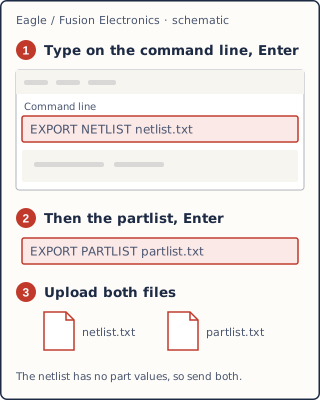
- In the schematic, type
EXPORT NETLIST netlist.txton the command line. - Then type
EXPORT PARTLIST partlist.txt. Upload both files: the netlist has no part values.
Text in the vector font can't be searched in a PDF, and it is the default. Change it first:
- Type
GROUP ALL, thenCHANGE FONT PROPORTIONAL, and right-click the group to apply the change. - Print with
PRINT FILE .pdf;(or Print › Print to File (PDF)).
EasyEDA
Netlist
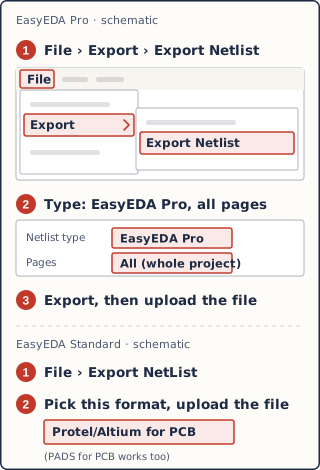
- EasyEDA Pro: choose File › Export › Export Netlist (or Export › Netlist). In the window, keep the EasyEDA Pro netlist type and all pages, then export. It writes a
.enetfile. - EasyEDA Standard: choose File › Export NetList and pick Protel/Altium for PCB (PADS for PCB works too).
Export the schematic as PDF from EasyEDA, then check that you can search for a reference designator.
Zuken
Zuken support is in preview. Upload the netlist your flow exports (for example a CCF netlist from CR-8000 Design Gateway) and a PDF from Zuken's PDF output, and we'll get back to you.
Still stuck?
Email hello@circuitprover.com with your tool and version, and we'll help you export the right files.